

Last Updated: May 22, 2026
Like this user above, if you have Linux-based NAS drives, you cannot directly access their data on a Windows PC. The reason is simple: Windows does not natively support any Linux file system – EXT2, 3, and 4, BTRFS, XFS, etc. It can only read exFAT, FAT32, or NTFS formatted storage drives. You can, however, access NAS drives formatted with Linux file systems on a Windows PC with the help of specialised software. In this blog, we will read more about this software in detail and learn how to use it.
What is the Need to Access Linux-based NAS Drives on Windows?
Here are some common reasons why you would need to access NAS drives formatted with Linux file formats:
- To recover data and files from a degraded or inaccessible NAS unit on a Windows PC
- Read/write to Linux-formatted drives directly in case of dual boot (Windows and Linux)
- Directly access data on the storage drives of the NAS
- Move data from an old NAS to a new one
How to Access Data from Linux-formatted NAS Drives on a Windows PC?
As Linux formats are incompatible with Windows OS, the only way to access data from the formatted NAS drives is with the help of Stellar Toolkit for Data Recovery – a specialized NAS data recovery software that lets you view data from Linux-based NAS drives. Using this third-party tool, you can scan EXT2/3/4 or BTRFS-formatted member drives of your NAS and access the data without any hiccups.
Here are some highlights of this third-party NAS data recovery tool:
- Simple-to-use DIY NAS/SHR/RAID recovery tool
- Access NAS devices remotely over the network using the SSH protocol
- Compatible with NAS devices from QNAP, Synology, and ASUSTOR
- Supports EXT-2/3/4 or BTRFS formatted Linux-based NAS drives
- View all types of data (files, documents, images, videos, etc.) from Linux-based drives
- Supports UNIX shell archive-based SHR-1 and SHR-2 member drives
- Capable of recovering files from inaccessible NAS, DAS, or SAN devices
- Reconstructs a failed RAID 0, 5, and 6 array virtually for data recovery
- Safely retrieves data from inaccessible or degraded RAID servers
- Supports Virtual Machine image (VMDK, VDI, VHD, & VHDX) data recovery
Follow these steps to use this NAS data recovery software to access Linux-based NAS drives:
Before you proceed:
- Power off the NAS device.
- Label every member drive you disconnect from the NAS box in the same order.
After this, follow the steps below:
- Connect the member drives in the same order to a Windows PC via SATA cables.
- Download and install Stellar Toolkit for Data Recovery on the same system.
- Launch it.
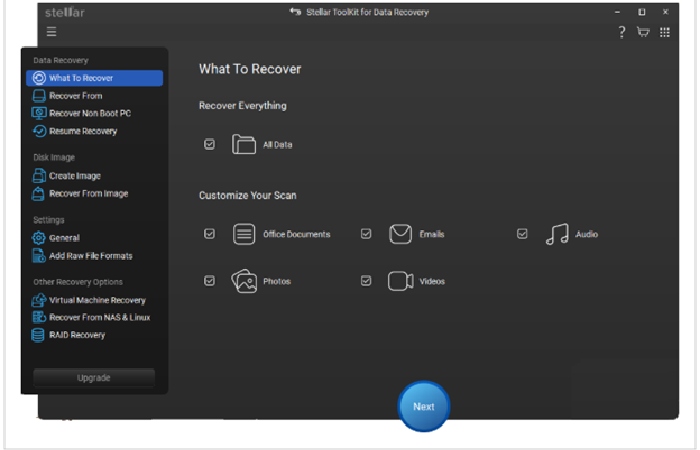
- On the What to Recover screen, select the type of data to recover. By default, All Data is selected. Click Next.
- The Recover From screen will appear. You will see various drives and connected devices.
- Here, the tool will automatically detect the connected drives and display the NAS with its brand name under the Connected Drives. Click on Scan to proceed.
- The software will scan the connected NAS drives and show the recoverable data.
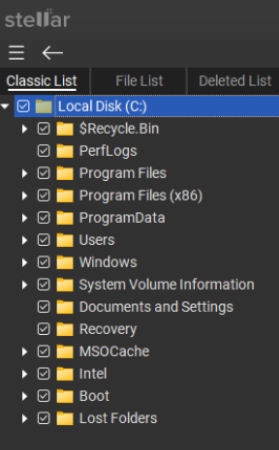
- Now, select any file from the left pane to preview. Doing this will help you verify the integrity of the data.
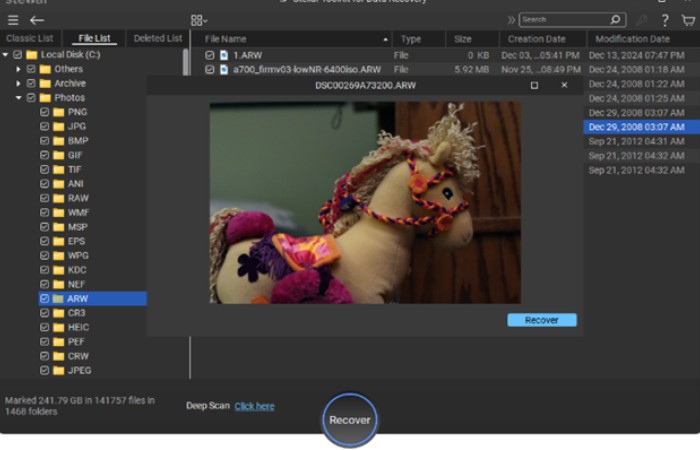
To save this data on your Windows system/connected external drive, follow the steps below:
- After previewing the files, choose the files that you want to recover. Click Recover.
- Next, click on Browse to select the location to save the selected data.
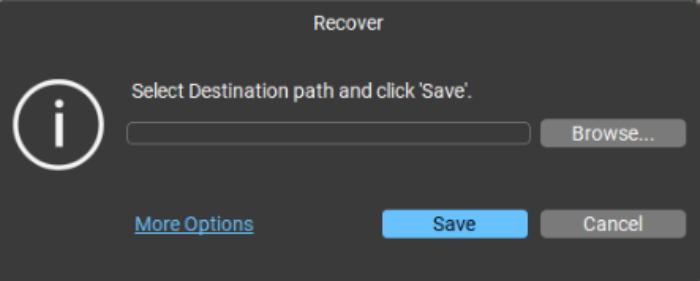
- After selecting the destination, click on Save. The software will start saving the recoverable files at the selected location.
- When finished, it will show the Data saved successfully
You can also use this NAS data recovery software to access Linux-based NAS drives remotely (online) via SSH:
- Launch Stellar Toolkit for Data Recovery on the system connected to the NAS device.
- On the What to Recover screen, select the type of data to recover. By default, All Data is selected.
- Next, click on the Recover From NAS & Linux option in the left pane.
- Choose the Linux Recovery option and click Next.
- Wait for the software to search for the available NAS devices on the network.
- Select the displayed NAS device and click on Next.
- The Connect NAS Remotely screen will appear. Add NAS credentials, and click on Connect.
- It will begin connecting to the selected NAS device.
- On the next screen, the software will list all the available volumes in the connected NAS.
- Select the volume/drive and click on Scan.
- Wait for the software to scan the selected NAS volume. It will list the recoverable data and folders in the left pane.
- Now, select any file from the left pane to preview
To save this data on your Windows system/connected external drive, click Recover and select the location where you want to save the selected data.
Conclusion
It can be tricky to directly access files or data from a Linux-based NAS drive on Windows due to file system incompatibility. However, with the right NAS recovery software, such as Stellar Toolkit for Data Recovery, you can easily access data from such storage drives on Windows PCs without any difficulties. Moreover, you can use this advanced software to scan the drives of a degraded NAS/RAID-based NAS and safely recover inaccessible data from it. Additionally, you can use it to recover data from other storage types like HDDs, SSDs, CD/DV-Ds, flash drives, and more.