

Last Updated: February 27, 2026
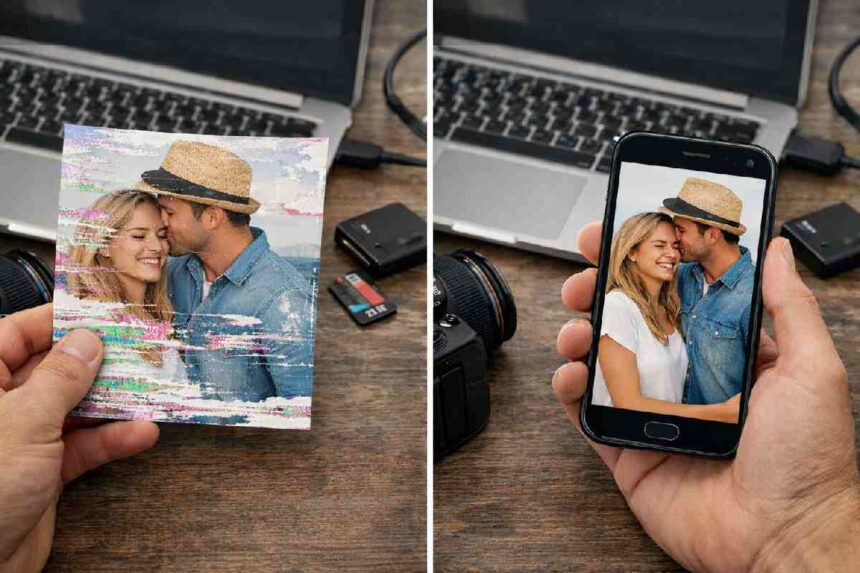
With digital cameras and smartphones everywhere, we take more photos than ever—mostly on our phones. Moving pictures from a camera or memory card to a phone has become a daily habit. Now imagine this: you capture a beautiful sunrise on your DSLR, transfer it to your phone to share or edit, and instead of a sharp image you see a pixelated, blurry, or grey mess. Frustrating, right? That usually means something went wrong during the transfer, and it’s more common than you’d think—Nearly 29% of data loss comes from simple accidents like power cuts, loose cables, or incomplete transfers. In this article, we’ll cover why photos get damaged during transfers, what to look for in a photo repair tool, and how Stellar’s repair solutions can help recover your images. With a bit of technical understanding and the right tool, there’s a good chance your photos can save.
Why Photos Get Damaged During Transfer
Photos can become corrupted in transit for a variety of technical reasons. Some common causes include:
- Interrupted transfer processes: Many times, photo damage happens simply because the transfer not allowed to finish properly. You might remove the SD card thinking the copy is done, or unplug the USB cable in a hurry. Sometimes the phone battery dies midway or the laptop shuts down because of low power. When this happens, the photo file left incomplete. As a result, the image may open partially, show broken pixels, random colors, or sometimes refuse to open at all.
- Faulty hardware or connections: Another common reason is the hardware used during the transfer. A slightly loose USB cable, an old card reader, or even a damaged camera port can disturb the data while it’s moving between devices. Memory cards also don’t last forever. If a card used for years or handled roughly, it can develop internal errors. These issues may not be visible immediately, but they often show up when photos copied and suddenly turn out corrupted or unreadable.
- Device crashes or software glitches: If the camera app or the phone crashes while saving or receiving a photo, the file may end up incomplete. Similarly, using outdated transfer software or drivers can mishandle the file. Any disruption mid-save can scramble a photo’s data.
- Human error: Accidentally ejecting the card too soon is surprisingly common. Removing an SD card without using the “Safe Remove” option can interrupt the write process and corrupt any photo being written. In short, any premature removal or abrupt power loss during a transfer can damage the image.
Knowing these pitfalls, for example, always charging your devices, using good cables, and waiting for transfers to complete, can help you prevent damage. But if the worst does happen, understanding the cause will also guide you to the right fix.
Features to Look for in a Good Photo Repair Tool
When a photo becomes unreadable or visibly corrupted, you need a repair tool that can actually fix it, not just view it. Here are the key features that matter most:
-
Broad format support (JPEG, PNG, HEIC, RAW, etc.), so it can handle files from both phones and DSLR/mirrorless cameras without compatibility issues.
-
Ability to repair common corruption issues like pixelation, distortion, and grey or scrambled images, not just minor visual glitches.
-
Batch processing, so you can fix dozens or even hundreds of damaged photos in one go after a bad transfer.
-
Preview before saving, letting you check each repaired image first while keeping the original file untouched by saving a separate copy.
-
Advanced repair options that use a sample photo from the same camera to help restore badly damaged files when basic fixes fail.
-
A clean, user‑friendly interface with a simple flow (for example: Add → Repair → Save) so anyone can use it without technical knowledge.
Choose a tool that supports your file types, repairs your specific corruption issues, and offers batch repair plus previews. That combination gives you the best chance to recover damaged photos.
Our Pick: Stellar Photo Repair
When it comes to actually fixing damaged photos, our top recommendation is Stellar Repair for Photo… using both its online and desktop versions. Stellar’s tool built to tackle the exact problems caused by transfer glitches. Reviewers note that it can recover images that look pixelated, distorted, or greyed-out… in other words, photos that didn’t copy over cleanly. Importantly, Stellar handles both JPEGs and the RAW formats from major cameras, so you can salvage almost any picture format.
The flexibility of Stellar’s solution is another big plus. For small issues and quick repairs, especially when the photo size is under 20 MB, Stellar’s free online photo repair tool works directly in your browser and fixes those damaged images of yours within minutes. For bigger files though, the Stellar Photo Repair software for Windows and Mac is always a better choice. It can handle large RAW files and repair multiple images in a single go. The software is reliable and easy to use mainly because it supports different formats and just keeps the repair process simple even for beginners.
Conclusion
In conclusion, a transfer glitch shouldn’t spell doom for your memories. Most photo damage arises from technical hiccups… an interrupted write, a bad cable, or a hurried SD card removal. By learning to safely eject devices, keep batteries charged, and use reliable cables, you can minimize these risks. But if corruption does occur and your image ends up scrambled or unreadable, all is not lost.
Photo-repair software offers a powerful rescue. Stellar Photo Repair, for example, supports exactly the file types and fixes you need, from repairing pixelated JPEGs to batch-recovering many RAW files at once. With a good tool in hand and a bit of patience, many “corrupted” photos can brought back to life. Next time a photo transfer goes wrong, don’t panic… try a specialized repair utility like Stellar’s. Your cherished moments deserve a second chance.